

Is it worth it?
If you’re fed up with lugging a heavy laptop to lectures or the library only to wait an age for it to boot, the ASUS Vivobook 14 E410KA hits a sweet spot: ultra‑light at about 1.3 kg, genuinely portable, and ready with Microsoft 365 for essays, emails, and everyday browsing. It won’t blitz through video editing, but for students, home users and anyone who wants a reliable second machine for light work, it solves the “too heavy, too slow, too pricey” dilemma without rinsing your budget. And there’s a quirky touchpad NumberPad trick up its sleeve that will either delight you… or surprise you.
After a fortnight using this E410KA as my daily carry, my quick verdict is clear: it’s a terrific low-cost companion for web apps, documents, and streaming, provided you keep expectations sensible. If you’re tempted to “just spend a bit more” for raw power, you probably should—this Celeron with 4 GB RAM and eMMC storage won’t satisfy heavy multitaskers. But if you lean into its strengths—lightweight build, Office out of the box, quiet fanless design—it’s easier to love than you’d think, especially when you play by its rules (more on that little twist below).
Specifications
| Brand | ASUS |
| Model | E410KA |
| Processor | Intel Celeron N4500 |
| Display | 14-inch Full HD (1920×1080) |
| Memory | 4 GB DDR4 |
| Storage | 128 GB eMMC |
| Battery | 42 Wh up to 12 hours |
| Weight | 1.3 kg. |
| User Score | 3.9 ⭐ (286 reviews) |
| Price | approx. 160£ Check 🛒 |
Key Features
1.3 kg lightweight chassis
This laptop is genuinely easy to live with because it’s so light and compact, slipping into a backpack without the shoulder ache that comes with chunkier machines. That matters if you’re commuting or moving between classes all day. It feels more like carrying a tablet-and-keyboard combo than a traditional laptop.
Fanless, silent design
No fan means no moving parts whirring away and fewer dust concerns. It stays whisper‑quiet in libraries and during late‑night study sessions, and the minimalist thermal design suits the low‑power Celeron. In practice, silence plus fewer distractions makes writing or revising less fatiguing—just expect performance to throttle if you push it hard.
14-inch Full HD display
Full HD at this price is a win—text looks crisp, and side bezels are slim for a modern feel. Colours are decent for office work and streaming. For spreadsheets, you can show more columns without squinting, and essays don’t feel cramped. Plugging into an external monitor via HDMI gives you a bigger canvas when deadlines loom.
Windows 11 S Mode + Microsoft 365 for 1 year
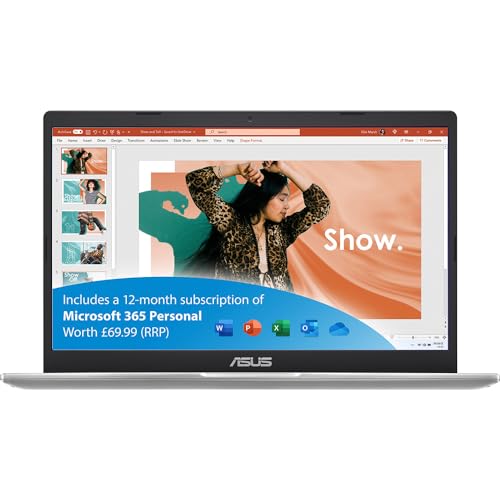
S Mode keeps things streamlined and secure by limiting installs to the Microsoft Store—helpful for new users and beneficial for performance on modest hardware. The included Microsoft 365 subscription gets you Word, Excel, PowerPoint and cloud storage to start working immediately. If you later need more freedom, you can switch out of S Mode (one‑way), but keep your app load sensible for best results.
Firsthand Experience
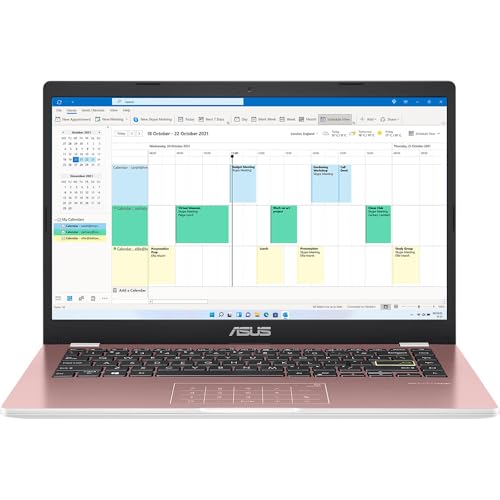
Unboxing is refreshingly simple: laptop, compact charger, quick start guide. The pink finish looks livelier in person—tasteful rather than shouty—and the bright yellow Enter key gives it a youthful vibe. The 180° hinge is handy when you’re sharing notes at a desk. Setup in Windows 11 S Mode takes minutes, especially if you sign in with a Microsoft account to sync OneDrive and your Office apps immediately. The fanless chassis means zero whirring—great in quiet libraries.
The first day, I purposely stuck to light tasks to reflect its target use. In S Mode with Edge and Microsoft 365, it felt responsive enough: Word and PowerPoint opened in a few seconds, and I could juggle around five tabs before it began to feel sluggish. At 8–10 tabs plus Spotify web, paging slowed and you feel the 4 GB RAM limit. The good news: keeping background apps lean and using web versions of tools keeps it snappy enough for schoolwork and emails.
A quick note on S Mode: it’s more secure and generally smoother on low‑spec hardware because it only allows Microsoft Store apps and the Edge browser. You can switch out of S Mode (one‑way change) to install Chrome or other software—Microsoft’s own documentation explains how—but performance can dip if you load it with heavyweight apps. Following advice echoed by real users, uninstalling preinstalled Microsoft 365 when leaving S Mode and opting for lighter alternatives (LibreOffice, web apps) helps the machine breathe.
Screen and sound are fine for the price: the 14-inch Full HD panel is genuinely a plus at this budget, making documents crisp and Netflix watchable. Brightness is adequate indoors; in direct sunlight, I needed to crank it to max and tilt the screen to cut reflections—typical at this price. The stereo speakers are clear for calls, podcasts and YouTube; music is serviceable, though a small Bluetooth speaker elevates the experience nicely. I often plugged into a 24-inch monitor via HDMI; extended desktop up to 1080p was stable and improved productivity hugely.
Battery life depends heavily on your workflow. With Wi‑Fi on, 70% brightness, Office apps and mixed browsing, I saw about 6 hours. Video calls and constant streaming brought it closer to 4–5 hours. Light reading and note‑taking stretched nearer to the quoted “day‑long” figure, but manufacturers test in ideal conditions. Charging from 10% to full took roughly 2 hours with the bundled adapter. The fanless design keeps it silent and cool at the palm rest, though the underside warms slightly during long video calls—never alarming.
Two quirks to know: first, the touchpad NumberPad is clever for quick sums but easy to trigger accidentally if you brush the icon. Use the toggle (NumberPad symbol) or Fn shortcuts to disable it when you don’t need it, and consider a mouse if you’ll do lots of editing. Second, storage is 128 GB eMMC—fast enough for basic tasks but slower than SSDs. Keep large files on OneDrive or an external drive. Some E410 variants include an M.2 slot, but configurations differ by region; check the official ASUS manual for your exact SKU before planning upgrades. As a rule, the RAM is soldered and not upgradeable, so buy it knowing it’s meant for light duty and minimal tinkering.
Pros and Cons
Customer Reviews
Early buyers in the UK broadly agree it’s excellent value and easy to set up, with a nice screen and ultra‑portable build. The compromises are predictable for the price: performance can feel sluggish beyond light tasks, battery life varies widely by workload, and a few users report finicky touchpads or power issues. If you accept its limits, it starts to make a lot of sense as a basic machine.
Great little machine if you keep it lean—leave S Mode on or remove heavy apps and it runs fine
Superb value for Microsoft apps and web use, not the fastest but perfect for the money.
Disable S Mode and it behaves like a normal, slightly underpowered Windows laptop
Not as quick as hoped and the NumberPad can be annoying when accidentally toggled
Painfully slow for streaming and basic browsing, with frequent freezes—wish I could return it.
Comparison
If you’re deciding between this and a similarly priced Chromebook, the trade‑off is clear: Chromebooks often feel faster on low‑end hardware thanks to lightweight ChromeOS, but Windows gives you desktop apps like full Office and broader peripheral support. If your life is mostly in the browser and you don’t need Windows software, a Chromebook might feel snappier. If your school or job requires Windows, the E410KA remains the safer bet—just keep your app load light.
Versus other budget Windows laptops, models with 8 GB RAM and a true SATA/NVMe SSD (for example, some Lenovo IdeaPad 1 or HP 14 variants) will multitask better and launch apps quicker, but they usually cost more. The E410KA’s edge is weight, silence, and the bundled Microsoft 365, making it attractive as a secondary device or a first student laptop. If you can stretch to the next price tier, the extra RAM and SSD do make a tangible difference day to day.
Within ASUS’s own family, larger VivoBook or Aspire‑class competitors with Intel Core i3/Ryzen 3 chips deliver stronger performance and often add a backlit keyboard, at the cost of extra weight and money. If you value the 1.3 kg portability and quiet operation above all, the E410KA keeps winning; if you prioritise speed for photo editing, many tabs, or light coding, look for 8 GB RAM minimum and SSD storage—even if it means a slightly heavier machine.
Frequently Asked Questions
- Can I upgrade the RAM later?
- No. The memory is soldered and not user‑upgradeable, so buy it knowing 4 GB is the limit.
- Does it have an SD card slot?
- No, there’s no SD card reader on most E410KA configurations
- Can I install Chrome or other desktop apps?
- Yes, but only after switching out of Windows 11 S Mode (a one‑way change). Keep installs lean to maintain performance.
- How long does the battery last in real use?
- Expect around 4–6 hours with mixed tasks and Wi‑Fi
Conclusion
The ASUS Vivobook 14 E410KA is a likeable budget laptop that does exactly what it says on the tin: handle everyday tasks in a featherweight, fanless chassis with a crisp 14-inch Full HD screen. Its best qualities are portability, silence, and the convenience of Microsoft 365 out of the box. The flipside is predictable—entry‑level processing, 4 GB RAM, and eMMC storage mean it’s not built for multitasking marathons or creative workloads. Battery life ranges from decent to modest depending on what you do, and the NumberPad touchpad is a love‑it‑or‑leave‑it feature.
Don’t buy this if you need power for photo/video editing, dozens of browser tabs, gaming, or if you’re allergic to any lag—aim for at least 8 GB RAM and SSD storage instead. Do buy it if you’re a student, casual user, or parent shopping for a teen who needs Word, Teams/Zoom, research, and streaming in a device that’s light, quiet, and inexpensive. In the UK, it typically sits in the low‑budget tier (often around the mid‑£100s to low‑£200s). At that price, it offers fair quality for the cost. Check the latest deals—if you see a sharp discount, it’s an easy recommendation as a secondary or starter Windows machine; if the price climbs toward pricier 8 GB/SSD rivals, consider stretching for the extra headroom.